🚀 Using the Generation Screen
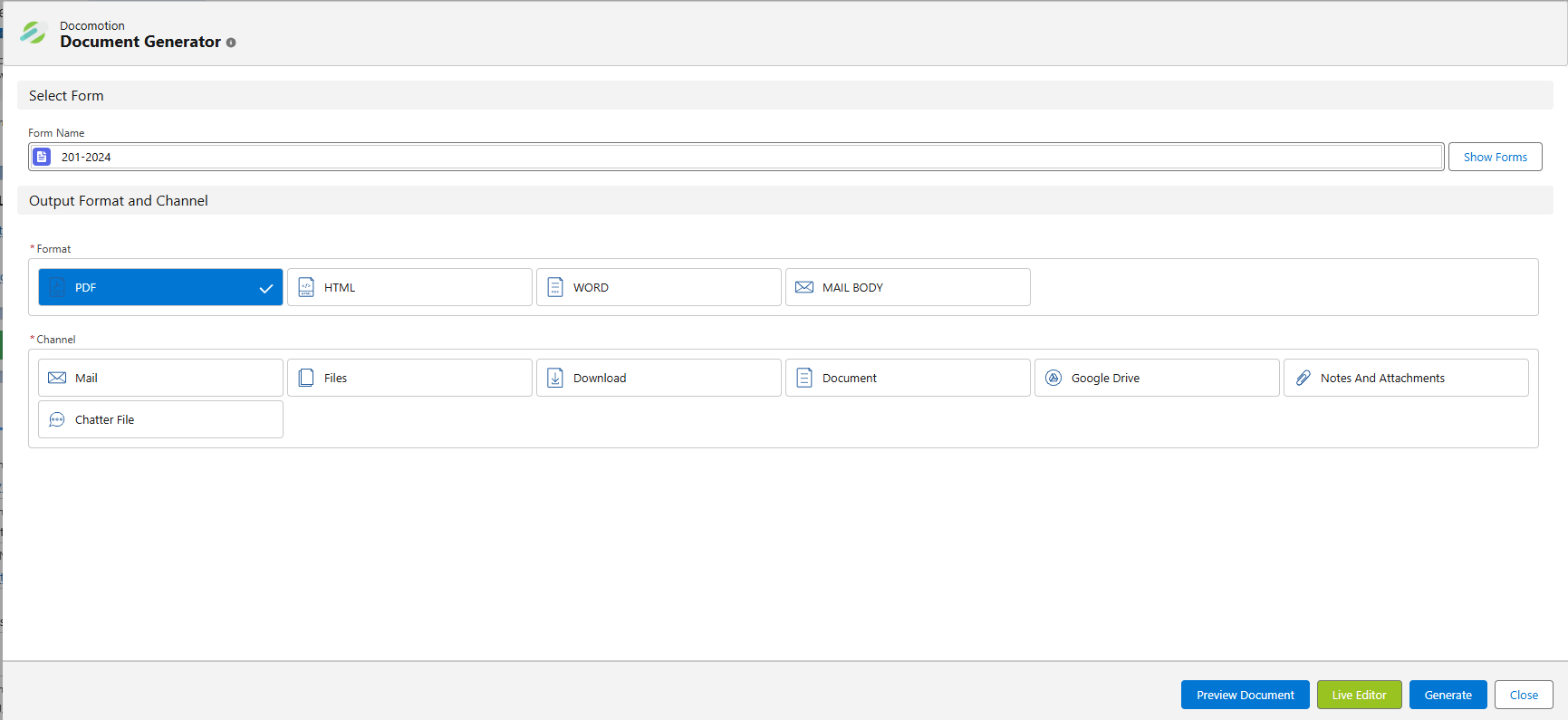
The "Output Format and Channel" section lets you control both the type of document you create (Format) and how it gets delivered (Channel).
You must select one Format (e.g., PDF, WORD) and one or more Channel (e.g., Mail, Download) to generate a document.
Here’s a breakdown of what each option does.
1. Select a Format
This is the type of file you want to create.
- PDF: A standard, non-editable document.
- HTML: A file viewable in a web browser.
- WORD: An editable Microsoft Word document (
.docx). - MAIL BODY: This option doesn't create a file. Instead, it generates content to be placed directly into the body of an email.
2. Select a Channel
This is the destination for your generated document. The available channels and their actions change based on the Format you selected.
📁 Standard Formats (PDF, HTML, Word)
Most channels behave similarly for these formats. The main difference is the type of file that is delivered.
| Channel | What It Does |
|---|---|
| Attaches the generated file (PDF, HTML, or Word) to an email. You will be prompted to select an email template for the message body. | |
| Files | Saves the file to the record's "Files" related list. |
| Download | Downloads the file directly to your computer. |
| Document | Saves the file to the central "Documents" library in your organization. |
| Notes And Attachments | Saves the file to the record's "Notes and Attachments" related list. |
| Chatter File | Posts the file to the record's Chatter feed. |
Special HTML Channel: Link
- When you select the HTML format, a special "Link" channel becomes available.
- This option does not attach a file. Instead, it adds a link to a web view of the HTML document to an email.
📧 MAIL BODY Format
This format is unique and has fewer channel options. It is designed specifically for email.
| Channel | What It Does |
|---|---|
| (This channel is automatically selected) The generated content is placed directly into the body of an email. No file is attached. | |
| Document | Saves the content (as it would appear in the mail body) as a file in your organization's "Documents". |
| Chatter File | Posts the mail body content directly to the record's Chatter feed. |
📈 Email Activity Tracking
Docomotion allows you to track email activities for documents sent using our email capabilities (e.g., the Mail channel or MAIL BODY format). This lets you see if a document, like a quote, has been sent and read (opened) by the recipient. How to Enable Tracking: To use this feature, you simply need to add the Email Activity object to your Salesforce object layout.⚠️ Important Notices
- Additional Documents: The option to attach 'Additional documents' is NOT available if you select the WORD or MAIL BODY formats.
- Notice: For Word and for Mail Body formats the option for 'Additional documents' is not available.