After you have successfully installed Docomotion, you need to configure Docomotion.
To access the Docomotion Configuration page:
In the App Launcher select Docomotion, and click the System Settings tab to display the Docomotion Configuration page.
Assigning Permissions
You need to assign each Docomotion user, including Salesforce Administrators, a proper permission set. The permission set determines which operations are available to the user. See Assigning Permissions.
Installing the Designer
Download and install the Designer tool. Designer is the Docomotion Windows program that enables designing, testing, and compiling Forms. See Installing the Designer.
Authorize Docomotion to update Salesforce data
If you plan to use the Live Editor, publish and use Interactive Forms, mass generate documents or perform any other asynchronous operation, you need to authorize Docomotion to update Salesforce data. Only a user authorized to update Salesforce data can perform this step. See Authorize.
Editing Link Expiration Period
If you intend to use the Interactive capabilities, you can change the default expiration period for the link.
Please note that you can also configure a link expiration period for a specific Form (see Defining the Default Form Generation Settings). The expiration period of the Form overrides the system setting.
Mass Generation Expiration Period
If you intend to use Mass Generation, you can change the default expiration period for the result documents stored on the Docomotion servers. The default period is 4 days.
Email Validation
If you intend to generate output to through the email output channel you can block output generation if the recipient is missing an email address. If this option is not activated users receive a message that the recipient is missing an email address and, if they choose to continue they need to select a recipient with an email address (or add an email address to this recipient).
To activate this option check the Activate box and click Save Email Block Settings.
See Generating Output through the Generate Document Button.
Enable Live Editing
You can enable output generators to use the Live Editor and edit the output before it is generated. These changes are not updated in Salesforce and apply only to this generated output.
This option is only available if Docomotion is authorized to interact with Salesforce data. See Authorize.
To activate this option, check the Activate box.
You can also select Show Reload Page Label to enable users to reload the Live Editor data and refresh the location of the end-of-page indicators.
Click Save Live Editor Settings.
PDF Password Protection for Interactive Submission
You can configure Docomotion so that Interactive PDFs generated through the Link channel are password-protected. The password is based on the Salesforce ID of the related Signature record.
To activate this option, check the Activate box and click Save PDF Protection.
Date and Time Default Formats
You can configure The Date and Time formats applied to Date and DateTime tags when added to the Form by the recipient of an Interactive Form.
- From the Date Format dropdown list, select a date format.
The following are available for the day/month formats:
- dd: date number
- dddd: day name
- MM: month number
- MMM: month short name (for example MAR, SEP)
- MMMM: month full name
2. Select a Separator for the date where needed: dot, hyphen, slash
3. From the Time Format dropdown list, select a time format:
- hh:mm:tt : AM/PM
- HH:MM : 24 hours (for example 23:15)
4. Click Save Date and Time Settings.
Send Email Customization
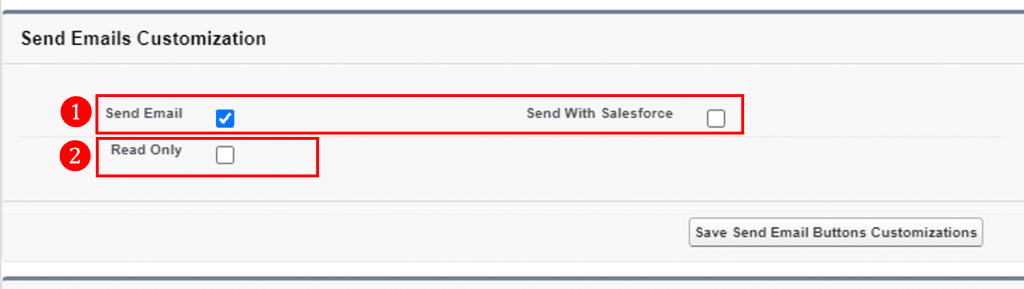
When generating Mail Body output using the Legacy generation UI (1), Docomotion can be configured to enable users to edit and send the email directly and/or through Salesforce’s Send an Email window.
- Select Send Email to display the Send Now button.
- Select Send with Salesforce to display the Send with Salesforce button.
Note: At least one of the previous options should be selected.
- Select Send with Salesforce to display the Send with Salesforce button.
- Click Save Send Email Buttons Customization.
When generating Mail Body output using the New UI (2), Docomotion can be configured to disable the user’s option to edit the email body before sending.
- Select Read Only to create the email as Read Only.
Note: At least one of Send Email or Send with Salesforce options should be selected.
- Select Read Only to create the email as Read Only.
- Click Save Send Email Buttons Customization.
PDF Accessibility
You can configure some accessibility options for the organization.
- Select Enable PDF Accessibility to create tagged PDFs.
- Select Enable PDF Accessibility to create tagged PDFs.
- Select Repeat Table Header for the table header to be repeated on every row when reading a table.
- In the Empty Cell Replacement text box enter the text when reading empty table cells.
- Click Save PDF Accessibility Settings.
Upgrade Metadata
When upgrading to version 12 from an older version, you need to activate the upgrade of the organizational metadata.
- Click Create Remote Site Setting.
- Click Upgrade.
Signed PDF Settings
You can configure where to save the signed PDFs and uploaded files.
In which object: The record from which the signed PDF was generated (Parent) or the Signature object.
Where to store: In Notes&Attachements or in Files.
Download Files
In order to use the Doc2Files add-in that enables editing files relating to Salesforce Objects, you need to enable downloading files and configure the save options for the add-in. (See ‘Enable Doc2File Add-on’)
Generate and Download Log File
Use this feature to activate logging for a duration of up to one hour on the Docomotion server and download the generated CSV log file to your local workstation.
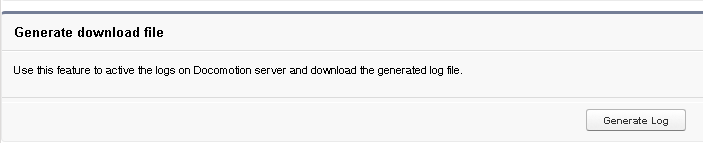
When you click Generate Log logging starts and the button changes to Stop.
To stop the logging and generate the log file before the end of the hour click Stop.
A notification message requires you to approve download.
Click OK to confirm.
Additional Recipients
By default, when generating output using the Mail Body output format or Mail output channel, you can select as recipients all contacts and leads of the Main Object.
When this feature is enabled, you can select a recipient from any record related to the main object, provided the record includes a field with an email address.
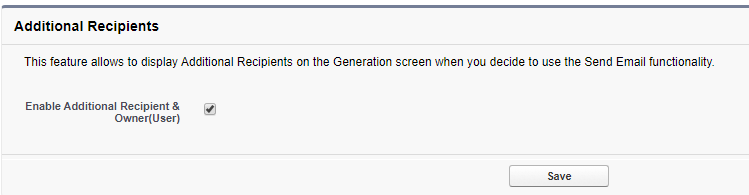
Image Compression
Use this feature to activate automatic image compression for uploaded files. Images are automatically proportionally compressed so that the maximum image dimensions are 1000 pixels, while the resolution is maintained.
To activate the option, select Activate and click Save.
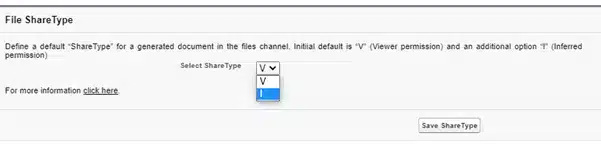
Control Share Type
Add the ability to control the sharing type of the generated File. Docomotion administrator can choose the Share Type option for every generated File (The files that will be generated for the File channel).
V- Viewer Permission.
I- Inferior Permission