Working with Containers
A Container is a special tag designed to envelop a designated content area within a form, with its primary function being to facilitate the manipulation of content visibility through specific scripts, providing a dynamic and controlled method for displaying or concealing content.
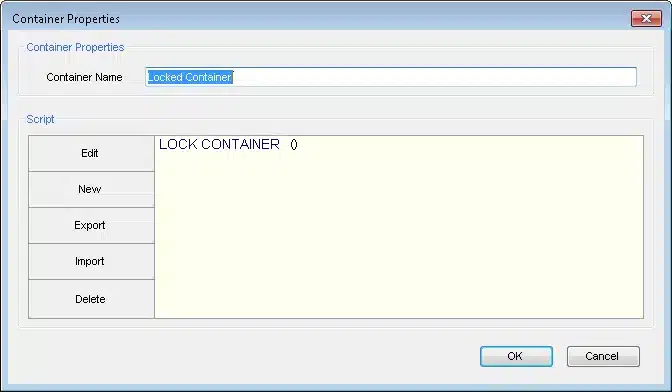
An additional functionality of a Container is to lock its wrapped content, preventing it from being editable in the Live Editor and in the Dynamic Word Add-in. (See screenshot at the end of this page)
1. Identify Content
Select the specific content you want to organize or manipulate within your form, which could be:
- Part of a paragraph that may include fields or tags.
- One or more consecutive paragraphs – including the end of paragraph symbol ¶ so that when the entire paragraph is hidden the gap will be closed.
- Entire pages, including page break(s), so that when the content is hidden no blank pages will remain.
- A single table row (note: this refers to a Designer row – if it includes data fetched from a Related List in the system, the entire table will be affected by the container logic).
- Several table rows – together with a paragraph symbol before and after them.
2. Wrap into Container
Double-click on the Container tag located in the Data-Model panel to wrap the content.
3. Set Container Properties
- Give the Container a name: This Best Practice recommendation will help understand the functioning of the form, and will also be visible when using the Dynamic Word add-on.
- Define the Container’s properties: Either by writing a script or by importing an existing one:
- Conditions: Specify the criteria using ‘If’ statements.
- Tag Values: Set relevant tag values for effective organization.
- Behavior Definition: Determine the visual actions.
Tips and Examples
The default of containers is to always show the container content. Therefore, in cases where the container should only be shown under certain conditions, it is recommended to begin the logic with Hide Container, then add the condition, and if the condition is met - define the behavior to Show Container.
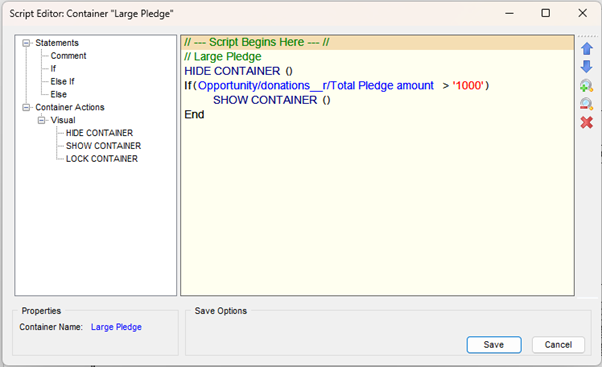
Condition for Show/Hide Container
When comparing a field value with a constant value, the value has to be an exact match in terms of upper/lower case letters, spelling, spaces, thousands separators, punctuation etc., otherwise the condition will not be met.
Please note : Blank fields are not imported into Docomotion forms. Consequently, you cannot compare a field directly to a blank value. To check for empty fields, use IF Xfield <> 'Empty'. Conditions comparing a blank field against a specific value—such as IF Xfield <> 'test'—will not evaluate to true or exclude blank fields.Complex Conditions
For complex conditions, right-click on the operator to add a condition. The logic operator can be set to AND or OR.

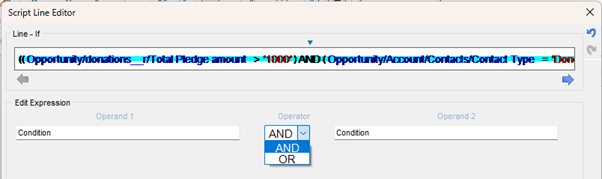
Order of Operations
When creating a complex condition, mind the order of operations in parentheses. The placement of brackets significantly impacts the logic; for example, (IF(Class=’Third’)OR((Age>’9’)AND(Age<’10’))) will give a different result than (IF((Class=’Third’)OR(Age>’9’))AND(Age<’10’)).
Using Functions
The logic conditions on scripts and containers may include functions. The explanation of how to use each function appears in the help pane at the bottom of the window.
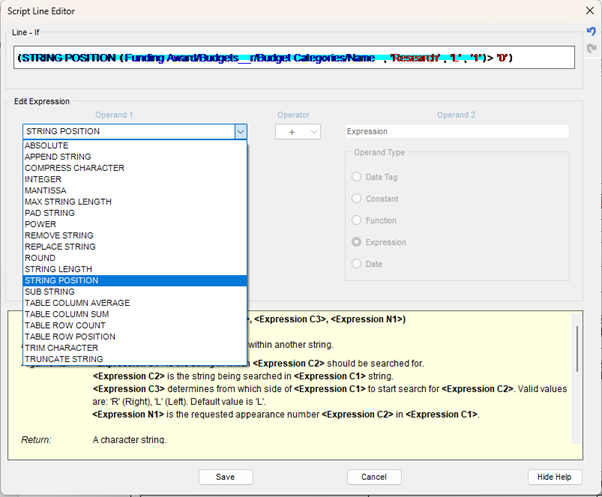
Commonly Used Functions
Some of the most widely used functions are:
- STRING POSITION – Similar to spreadsheet “contains” functions, this function is handy when comparing with an exact match will require too many comparisons, when a field label and API name are not 100% identical, or when looking for a value in a multi-picklist.
- TABLE COLUMN SUM – Set within a graphical table, this will only return the column sum of the selected rows; however, set outside of a graphical table, it will return the column sum of the entire table.
- TABLE ROW COUNT – Indicates the number of rows in a table.
For more information about the script editor, please see Implementing Scripts.
Table Logic
Besides using Containers with logic scripts, similar scripts can be added to Table rows under the Properties of the blue T(able) or B(lock) symbol in the Data Tags pane on the left.
These may come instead of containers or in addition to them, depending on the fields that are queried in the scripts and whether the required action applies to a logical table row or to a graphical row or area.
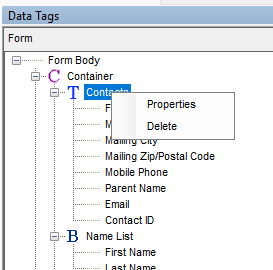
When to use Container vs. Blue T/B?
- Logic on the T: Use this when only specific rows from a system table are to be shown (e.g., rows where SUM > 0 or Type = ’Product’). Note that scripts on T properties can only query fields from their specific related list.
- Logic on the Container: Use this when the part to be shown/hidden is not part of a table, or when hiding a series of rows, an entire table, or a combination of text and table.
Locking data to prevent editing by users